JIRA Integration
Create design reviews directly from JIRA with our Forge app
Available on: Solo, Team, and Enterprise plans • View dedicated landing page →
Table of Contents
1. How It Works
MockReview Forge App for JIRA
Our native JIRA Forge app creates a seamless integration between MockReview and your JIRA workflow. Install once from the Atlassian Marketplace, connect your MockReview account, and you're ready to go!
Simple Setup Process:
- Install the MockReview app from the Atlassian Marketplace (one-time)
- Open any JIRA issue and find the MockReview panel
- Click "Connect to MockReview" and log in to your MockReview account
- That's it! Start creating design reviews directly from JIRA
What You Get:
📦 Plan Requirement: JIRA integration requires a Solo plan or higher.View pricing →
2. Quick Setup (2 minutes)
Install MockReview from Atlassian Marketplace
- Go to the MockReview Atlassian Marketplace listing
- Click "Get it now" and select your JIRA site
- Complete the installation (requires JIRA admin permissions)
Install from Atlassian Marketplace
Free trial available • No credit card required
Connect Your MockReview Account
- Open any JIRA issue in your project
- Find the "MockReview" panel (usually on the right side)
- Click "Connect to MockReview"
- Log in to your MockReview account (or create one if you don't have it yet)
- Grant permission when prompted
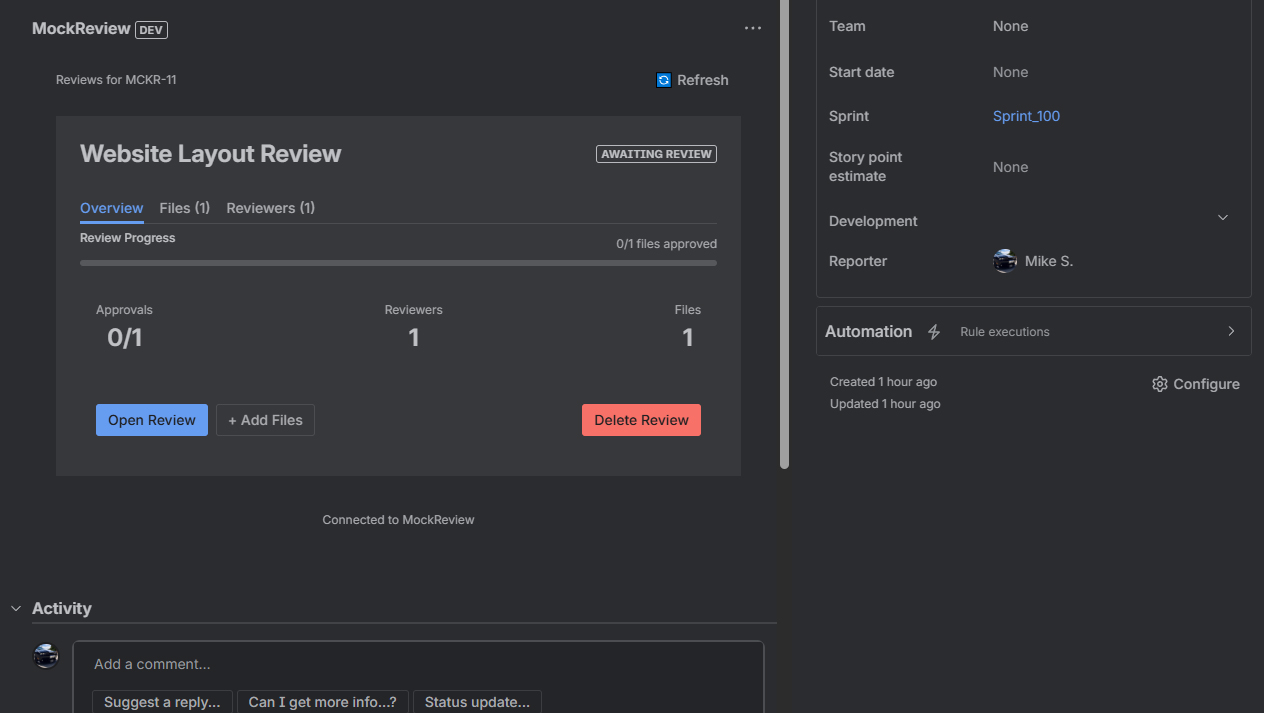
You're Ready!
That's it! The MockReview panel will now appear in all your JIRA issues. You can:
- Create design review requests with one click
- Select from existing projects or create new ones
- See review progress and status updates
- Get automatic notifications when files are approved or rejected
🎉 Setup Complete! The MockReview panel is now available in all your JIRA issues. No webhook configuration needed!
3. Using the Integration
Creating Review Requests from JIRA
Once connected, creating a design review from JIRA is as simple as clicking a button:
- Open your JIRA issue - Navigate to any issue that needs design review
- Find the MockReview panel - Located on the right side of the issue view
- Click "Create Review Request" - This opens the review creation dialog
- Select or create a project:
- Choose from your existing MockReview projects, OR
- Create a new project (if you haven't reached your plan limit)
- Give your review a name - Defaults to the JIRA issue summary
- Click "Create" - Your review request is created and linked to the JIRA issue
Screenshot: Creating a review from JIRA
Shows the MockReview panel with project dropdown and "Create Review Request" button
What Happens Next:
- The review request is created in MockReview and linked to this JIRA issue
- Team members can upload files to the review in MockReview
- Reviewers can add visual annotations and comments
- The JIRA issue gets automatically updated with review progress
💡 Pro Tip: If you've reached your project limit for your plan, you'll only see the option to select from existing projects. Upgrade your plan to create more projects.
4. Automatic Updates
The MockReview Forge app automatically posts updates to your JIRA issues as the review progresses. No configuration needed - it just works!
💬 New Callout Added
When a team member adds a visual annotation or comment on a file:
"The logo needs more padding on the left side"
----
View comment
✅ File Approved
When a file gets approved by a reviewer:
Comment: "Looks great! Ready to implement."
----
View in MockReview
🔄 Changes Requested
When a reviewer requests changes on a file:
Reason: "Colors don't match our brand guidelines"
----
View feedback
🎉 Review Completed
When all files in the review are approved:
Homepage Redesign Review - 5 files approved
----
View completed review
Real-Time Visibility
These automatic updates ensure your entire team stays in sync without having to switch between tools. Product managers, developers, and stakeholders can track design progress directly in JIRA.
- All comments and annotations are instantly visible
- Approval status is always up-to-date
- Links take you directly to the relevant file or comment in MockReview
- No manual status updates needed
5. Use Case Examples
Product Manager Workflow
PM creates JIRA issue "PROJ-123: Redesign Dashboard". Designer opens the issue, clicks "Create Review Request" in the MockReview panel, uploads mockups. As reviewers approve each screen, PM sees updates directly in JIRA without having to ask for status.
Design QA Process
Developer working on "PROJ-456: New Login Flow" needs approved designs before starting. Opens the JIRA issue, sees the MockReview panel showing all mockups are approved with a green checkmark. Clicks through to see specific annotations about spacing and interaction details.
Agency Client Collaboration
Client has view access to agency's JIRA. They can see the MockReview panel in their project issues, view design progress, and click through to add comments or request changes - all without needing a separate MockReview login for basic viewing.
6. Troubleshooting
❌ MockReview panel not appearing in JIRA
- Verify the MockReview app is installed (JIRA admin can check in "Manage apps")
- Try refreshing the JIRA issue page
- Check if your JIRA admin has enabled the app for your project
🔒 "Connect to MockReview" button not working
- Make sure pop-ups are not blocked in your browser
- Try using an incognito/private window to rule out browser extension conflicts
- Clear your browser cache and cookies, then try again
💬 Comments not appearing in JIRA
- Verify your MockReview account is connected (check in the panel)
- Make sure you're on a Solo plan or higher (JIRA integration requires Solo+)
- Check if the review request was created through JIRA (auto-linking only works for JIRA-created reviews)
📦 "Upgrade required" message when connecting
- JIRA integration is available on Solo, Team, and Enterprise plans only
- Upgrade your plan to use the integration
- Existing connections will remain active if you downgrade, but new connections require Solo+
🔗 "Can't create project" error
- You may have reached your plan's project limit
- Select from existing projects instead, or upgrade your plan
- Check your usage in MockReview Settings → Subscription
Still having issues?
Contact our support team and we'll help you get set up. Include your JIRA site URL and MockReview account email for faster assistance.
7. FAQ
Q: Do I need to configure webhooks?
No! The Forge app handles everything automatically. Once you install the app and connect your account, updates flow to JIRA without any webhook setup.
Q: Can I link one review to multiple JIRA issues?
Each review request is linked to the specific JIRA issue it was created from. If you need updates in multiple issues, create separate review requests from each one.
Q: Does this work with JIRA Server (self-hosted)?
Currently, the Forge app only supports JIRA Cloud. JIRA Server/Data Center support is on our roadmap.
Q: Can JIRA changes trigger actions in MockReview?
Currently, the integration is primarily MockReview → JIRA (creating reviews and posting updates). Two-way sync features are on our roadmap.
Q: What plans include JIRA integration?
JIRA integration is available on Solo, Team, and Enterprise plans. The Free plan does not include integrations.View pricing →
Q: Do my team members need MockReview accounts?
Team members who want to add annotations or approve files need MockReview accounts. However, anyone with JIRA access can view the review status and click through to see files (view-only).
Q: What if I reach my project limit?
If you've reached your plan's project limit, you can still create review requests from JIRA - just select from your existing projects instead of creating new ones. Or upgrade your plan for more projects.
Q: Is my data secure?
Yes! The Forge app follows Atlassian's security standards and only accesses the JIRA issues where it's installed. We use OAuth for authentication and don't store your JIRA credentials.
Ready to Connect JIRA?
Install the MockReview Forge app and start creating design reviews from JIRA